JPG vs PNG vs WebP for Upscaled Images
How the upscaler handles JPG, PNG, and WebP inputs, what each mode outputs, and which source format is best for AI upscaling.
The tool accepts JPG, PNG, and WebP — but the format you start with affects what the AI can work with and what comes out the other side. We recorded the actual input and output formats of real example runs through every mode.
How we tested
The before/after pairs below are real runs through the production pipeline. Input and output formats were read directly from the delivered files, so they reflect what the tool actually produces per mode.
Test images and formats
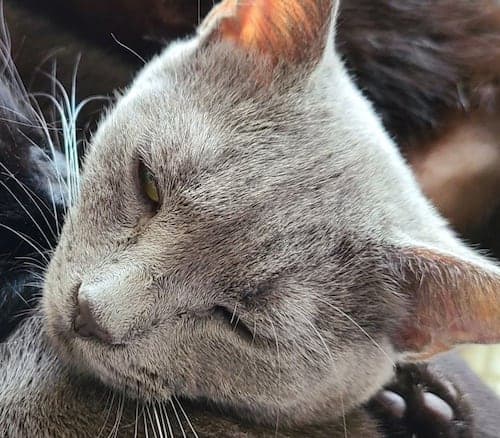
JPG input
JPG sources were used for Standard, Classic, Portrait, and High Scale mode runs:

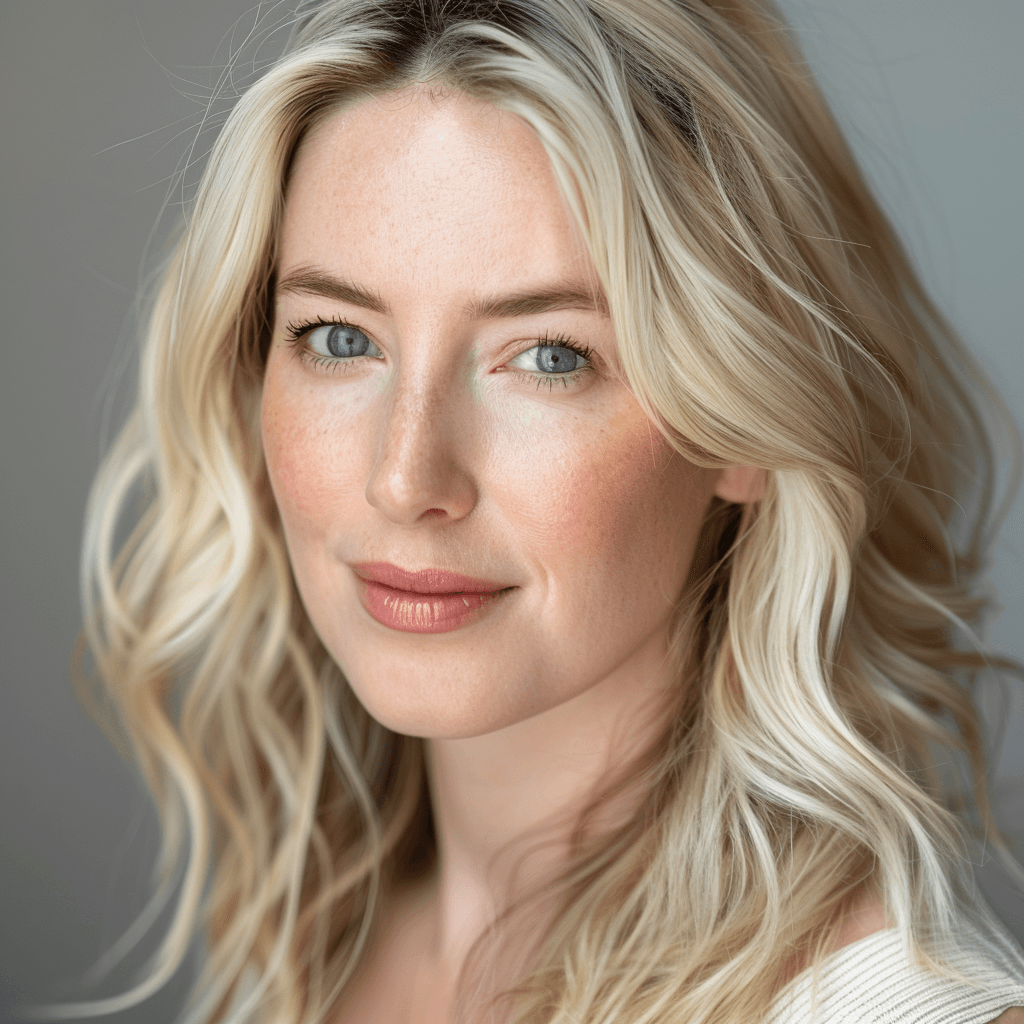
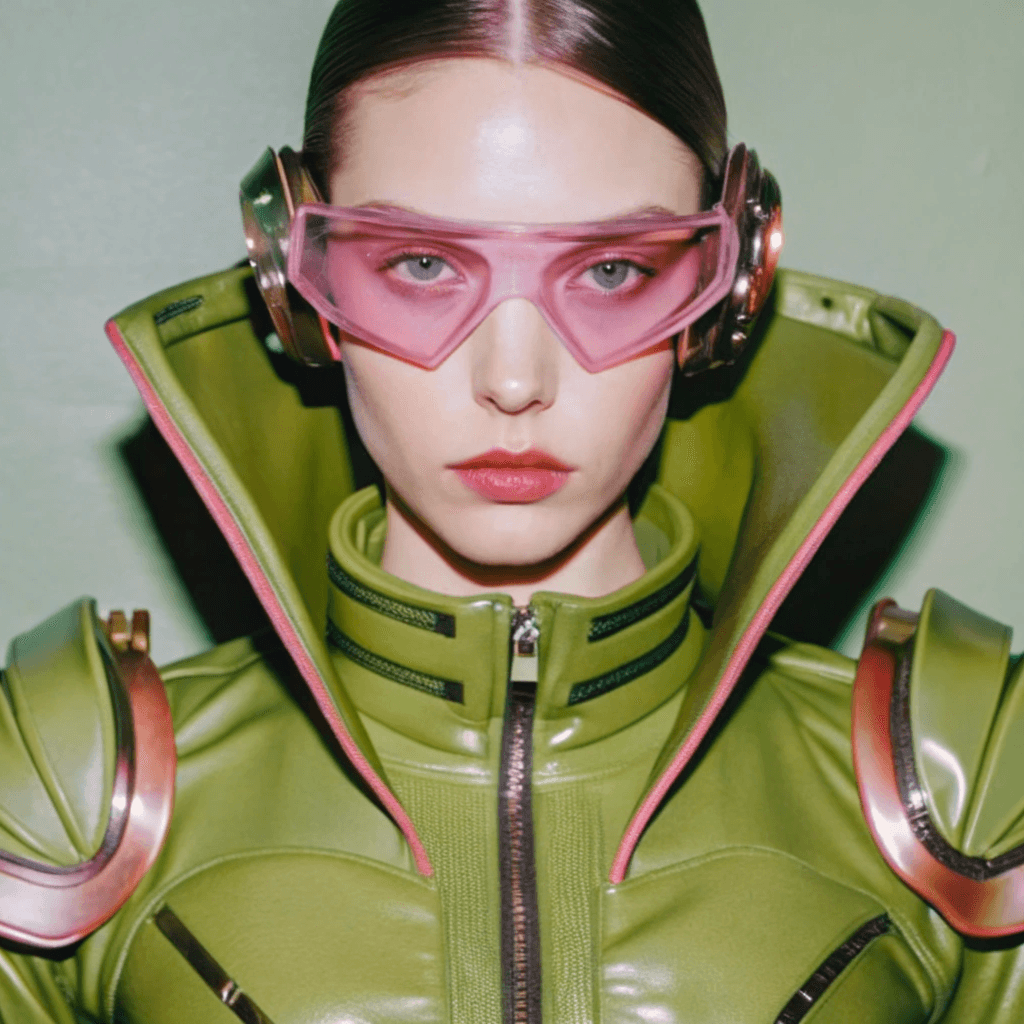
PNG input
PNG sources were used for Crisp and Creative mode runs:
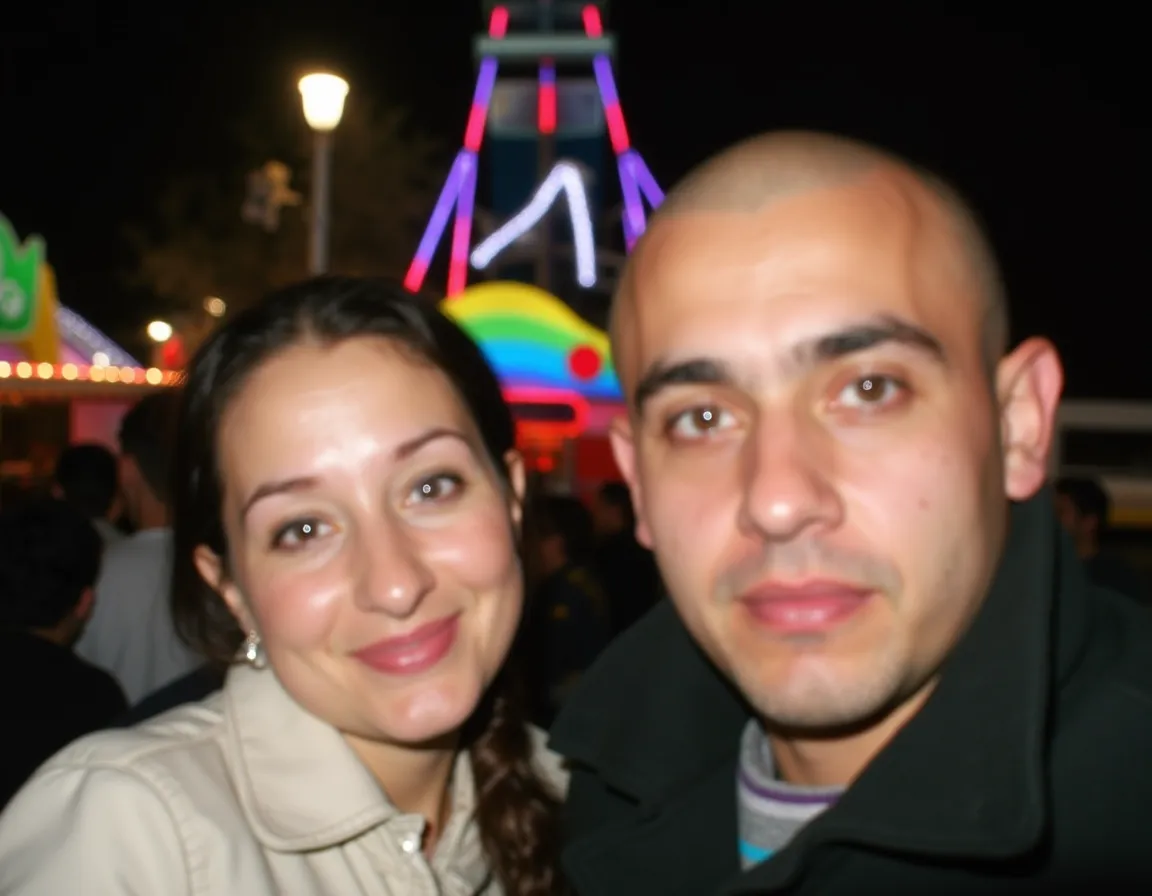
WebP input
A WebP source was used for the Smart mode run:
Results
| Input format | Mode | Output format |
|---|---|---|
| JPG (256 × 256) | Standard | JPG (2048 × 2048) |
| JPG (736 × 490) | Portrait | PNG (4384 × 2928) |
| JPG (500 × 438) | Classic | PNG (1000 × 876) |
| JPG (1280 × 768) | High Scale | PNG (2560 × 1536) |
| PNG (1024 × 1024) | Crisp | WebP (4096 × 4096) |
| PNG (1024 × 1024) | Creative | WebP (4096 × 4096) |
| WebP (1152 × 896) | Smart | JPG (4608 × 3584) |
Key facts
- Output format depends on the mode, not the input format. Standard and Smart deliver JPG; Classic, Portrait, and High Scale deliver PNG; Crisp and Creative deliver WebP.
- JPG is fine as a photo source. The AI works on the pixels it can see; a high-quality JPG gives cleaner results than a heavily compressed one.
- PNG is best for graphics and transparency. Use PNG sources for artwork, logos, and anything with an alpha channel. The Creative example input is an RGBA PNG; transparency handling in the output is mode-dependent, so check the result before relying on it.
- WebP is supported end to end. WebP inputs upscale normally — the Smart example is a WebP input producing a 4608 × 3584 JPG.
- Metadata such as EXIF is not retained in the output files.
Limitations
- Output formats are fixed per mode; you cannot choose a different output format in the current tool.
- If you need a specific output format, pick the mode that delivers it and convert afterwards if necessary.
Which mode should you choose?
- Photos in JPG or WebP → Standard, Portrait, or Smart mode
- Graphics with transparency in PNG → Crisp or Creative mode
- Traditional photo upscaling → Classic mode
- High-resolution output → High Scale mode
Try the Bulk Image Upscaler
Upload your JPG, PNG, or WebP images and pick a mode. The upload tool shows the estimated output size and credits before you process.