How to Upscale Portraits Without Distorting Faces
Use Portrait mode to upscale photos of people without warping facial features. Real test results with input, output, and credit costs.
Upscaling a portrait is different from upscaling a landscape. Faces have small, closely packed details — eyes, eyebrows, hair strands — and a generic upscaler can smooth them into waxy skin or subtly warp the face. The short answer: use Portrait mode, which runs a face-focused AI workflow designed to keep facial features looking natural.
What causes the problem?
A normal upscaler treats the whole image the same way: it estimates missing pixels from nearby ones. Faces break this assumption because the viewer is extremely sensitive to small changes in eye spacing, skin texture, and hair edges. A model that looks fine on a landscape can make a face look plastic or asymmetrical at 4× and beyond.
How we tested
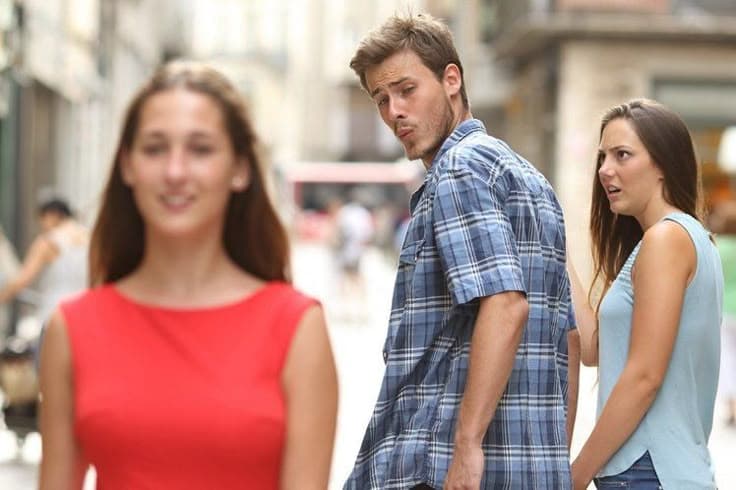
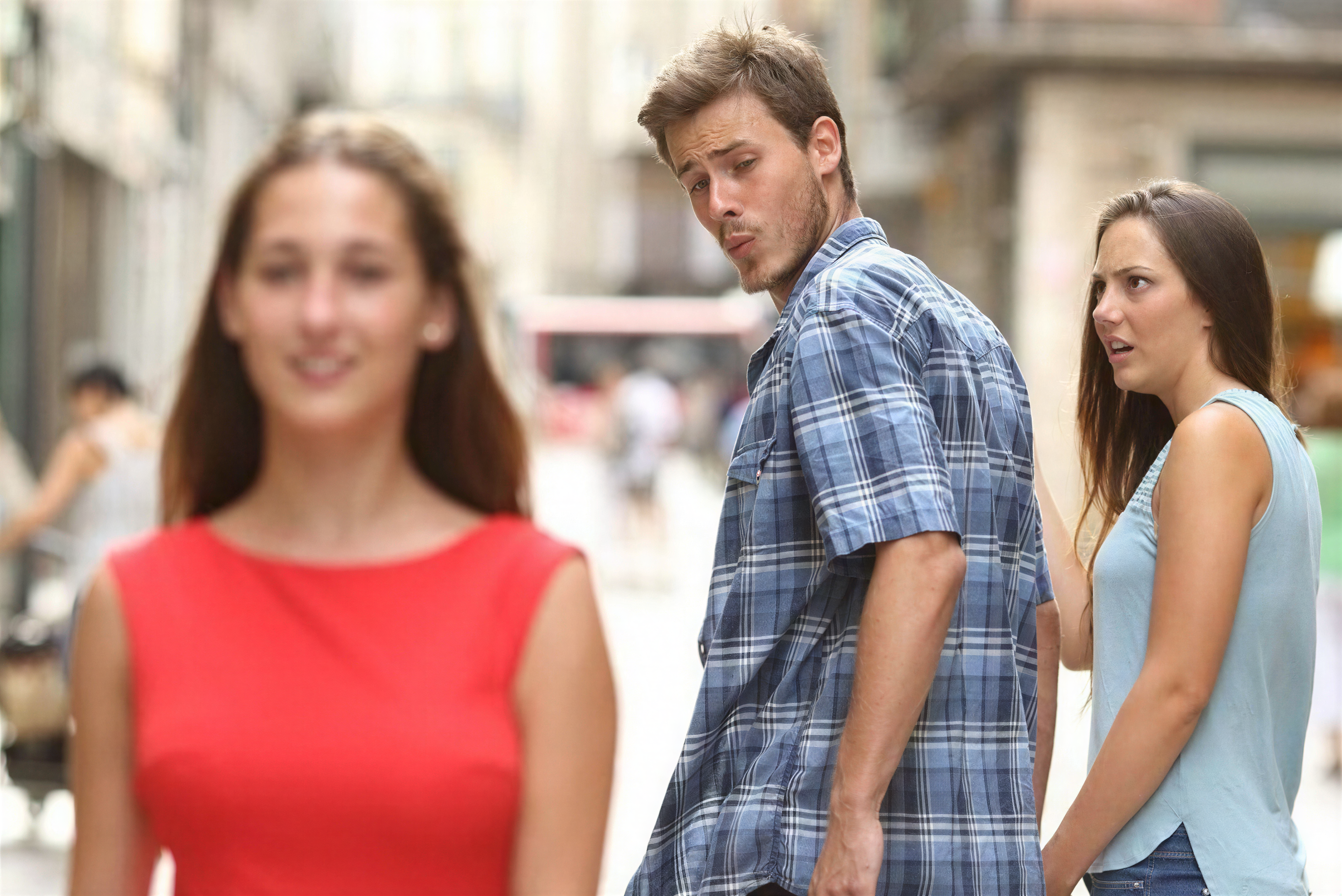
A real portrait photo was run through the production Portrait pipeline. The input and output files were recorded as delivered, and the credit cost comes from the live pricing used by the tool.
Test image and settings
- Input: 736 × 490 JPG portrait photo
- Mode: Portrait (Crystal Upscaler, face-focused workflow)
- Scale: ≈6× (effective, output delivered at 4384 × 2928)
- Output: PNG
- Date: 2026-08-01
Results
| Setting | Value |
|---|---|
| Original | 736 × 490 JPG |
| Output | 4384 × 2928 PNG |
| Mode | Portrait |
| Model | Crystal Upscaler |
| Effective scale | ≈6× |
| Credits used | 20 |
Portrait mode is the most expensive mode in the tool because the face-aware enhancement pass runs on top of the upscale. The credit cost scales with the output resolution, so a smaller input at the same scale costs fewer credits — the pricing panel shows the exact cost before you start.
Limitations
- Detail is redrawn, not copied. Fine skin and hair texture is interpreted by the AI. It stays natural-looking, but it is not a photographic copy of the original pixels.
- Nothing can be recovered. If the original is blurry or low detail, no upscaler can invent information that was never there. AI adds plausible detail, not ground truth.
- Face similarity is close but not pixel-perfect. Eyes, mouth, and hair stay recognizable, but very fine original texture can change.
Which mode should you choose?
- People, portraits, and social avatars → Portrait mode.
- Older photos and general images → Classic mode (Real-ESRGAN).
- AI artwork and everyday graphics → Standard mode.
If your image has no people in it, the face-aware pass adds cost without value — use Standard or Classic instead.
Try the Bulk Image Upscaler
Upload a portrait photo and select Portrait mode. The upload tool shows the estimated output size and required credits before you start, so you can review the cost before processing.