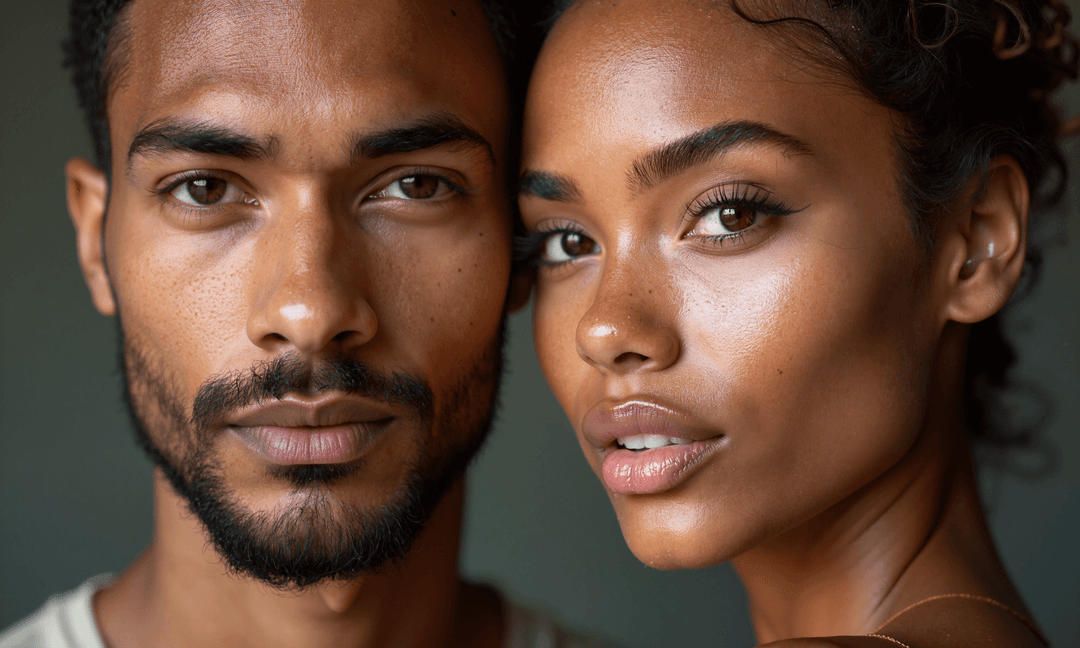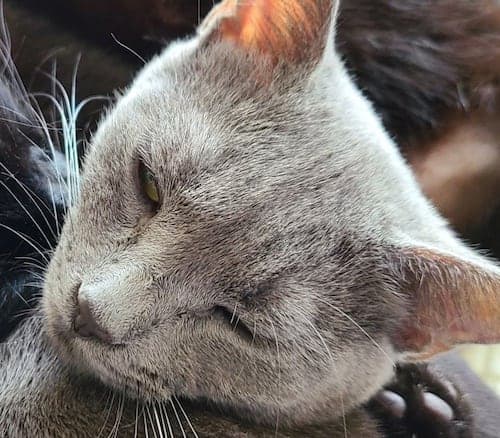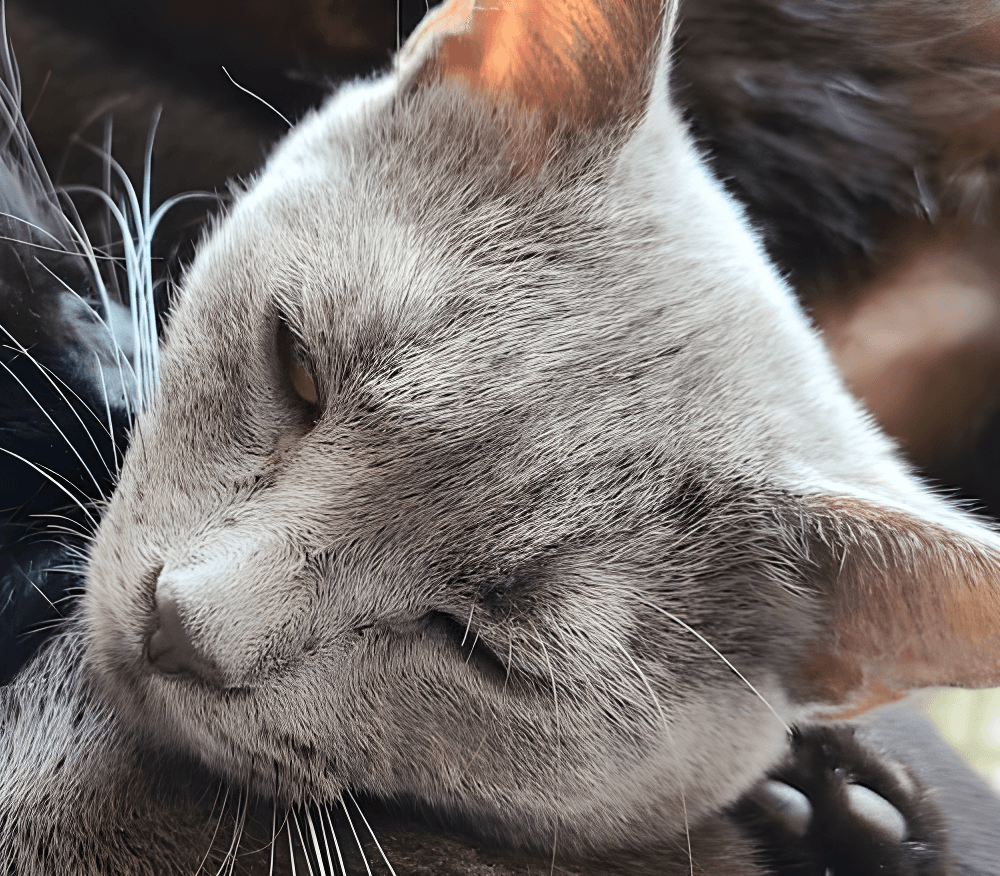
Bulk Image Upscaling with AI

AI Bulk Image Upscaler

Upscale multiple images at once with AI-powered modes for portraits, artwork, photos, and more.

Create an account and get 10 free credits to start upscaling.

  • Batch Image Processing
  • JPG, PNG, and WebP
  • Multiple AI Upscaling Modes
AI Powered

Upload Multiple Images

Create an account and get 10 free credits. The Free plan supports up to 5 images per batch.

No images selected yet

Results
Images waiting to be upscaled appear here.
Output

Waiting images appear here after upload.

Comparison
Drag the slider to compare the original and upscaled image.

Your upscaled images will appear here.

How to Upscale Multiple Images at Once

Upload multiple JPG, PNG, or WebP images in one batch. Your batch limit depends on your current plan. Choose an AI upscaling mode based on your image type, review the required credits, and start processing.

  1. 1Create an account and receive 10 free credits.
  2. 2Upload multiple JPG, PNG, or WebP images.
  3. 3Choose an upscaling mode for your image type.
  4. 4Select an available upscale factor.
  5. 5Review the estimated output size and required credits.
  6. 6Start processing and download the results.

The Free plan supports up to 5 images per batch. Other plans use the batch limits shown on the Pricing page and in the upload tool.

Choose the Right AI Upscaling Mode

Pick the mode that matches your image type. Each mode runs a different AI workflow tuned for a specific kind of content.

Free plan

Standard Mode

General-purpose image upscaling

Best for: Photos, AI art, illustrations, and everyday images

2× defaultChoose Standard
Go plan

Portrait Mode

Portrait-oriented enhancement

Best for: Portraits, social avatars, wedding photos, and model shots

2× defaultChoose Portrait
Go plan

Crisp Mode

Sharp and faithful image enhancement

Best for: Product images, web and print assets, and UI screenshots

Automatic outputChoose Crisp
Plus plan

Creative Mode

Richer textures and creative image details

Best for: AI art, digital illustrations, concept art, and stylized scenes

Automatic outputChoose Creative
Plus plan

Smart Mode

Versatile upscaling for mixed image types

Best for: Photos, low-resolution images, CGI, documents, and text

4× defaultChoose Smart
Plus plan

High Scale Mode

High-resolution and large-scale image output

Best for: Posters, 4K and 8K assets, and large prints

Free plan

Classic Mode

Classic super-resolution model

Best for: Photos, older images, illustrations, and anime

4× defaultChoose Classic

Supported Image Formats

The bulk image upscaler accepts JPG, PNG, and WebP images. Batch totals and per-file limits depend on your plan and are shown in the upload tool.

Input formats
JPG, PNG, and WebP
Per-file size limit
Plan-based, from 5 MB on the Free plan
Input resolution
Plan-based, from 12 MP / 6,000 px per side on the Free plan
Batch limit
Plan-based, from 5 images per batch on the Free plan
Output scale
Mode-specific; shown in the upscale selector
Output format
PNG; metadata such as EXIF is not retained
PNG transparency
Preserved by Classic mode; Standard mode flattens it
Animated images
Not supported; upload a still JPG, PNG, or WebP image

Common upload failures

  • Files that are not JPG, PNG, or WebP are rejected.
  • Images over the plan's per-file size or resolution limits are rejected before processing.
  • A batch that exceeds the plan's total size or pixel limit is rejected as a whole.

See Real Before-and-After Results

Every example below is a real test run through the same AI models the tool uses, with the input, output, processing time, and credits used recorded for each image.

Small JPG photo before AI upscaling
Before
Photo after 8x AI upscaling with Standard mode
After

Fast General Upscaling

Mode
Standard
Model
P-Image-Upscale
Scale
Original
256 × 256 JPG
Output
2048 × 2048 JPG
Processing time
Not recorded
Credits used
1

Observed

  • Standard mode enlarged the 256 × 256 JPG by 8× to 2048 × 2048.
  • The result was delivered as a JPG at 1 credit for this output size.

Limitations

  • A 256 × 256 source is very small: the 8× result cannot add information that was never captured in the original pixels.
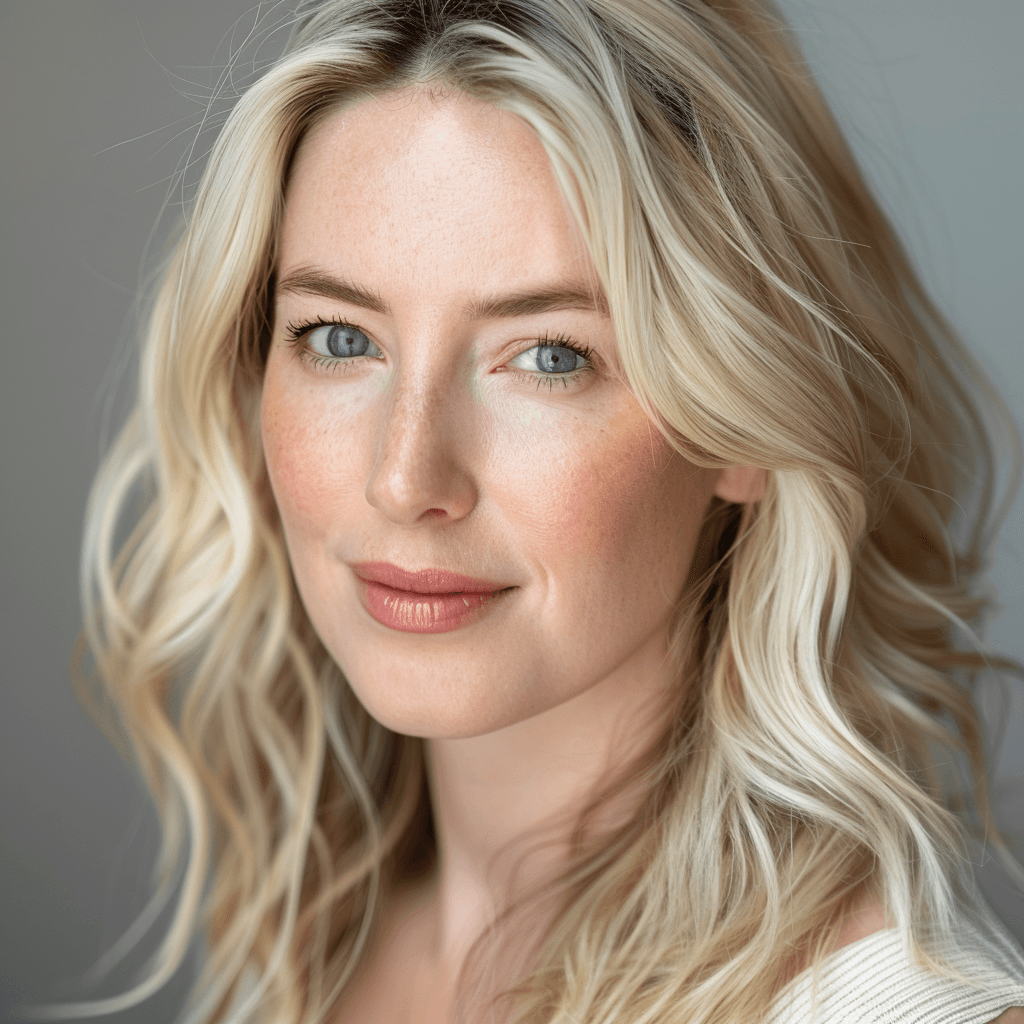
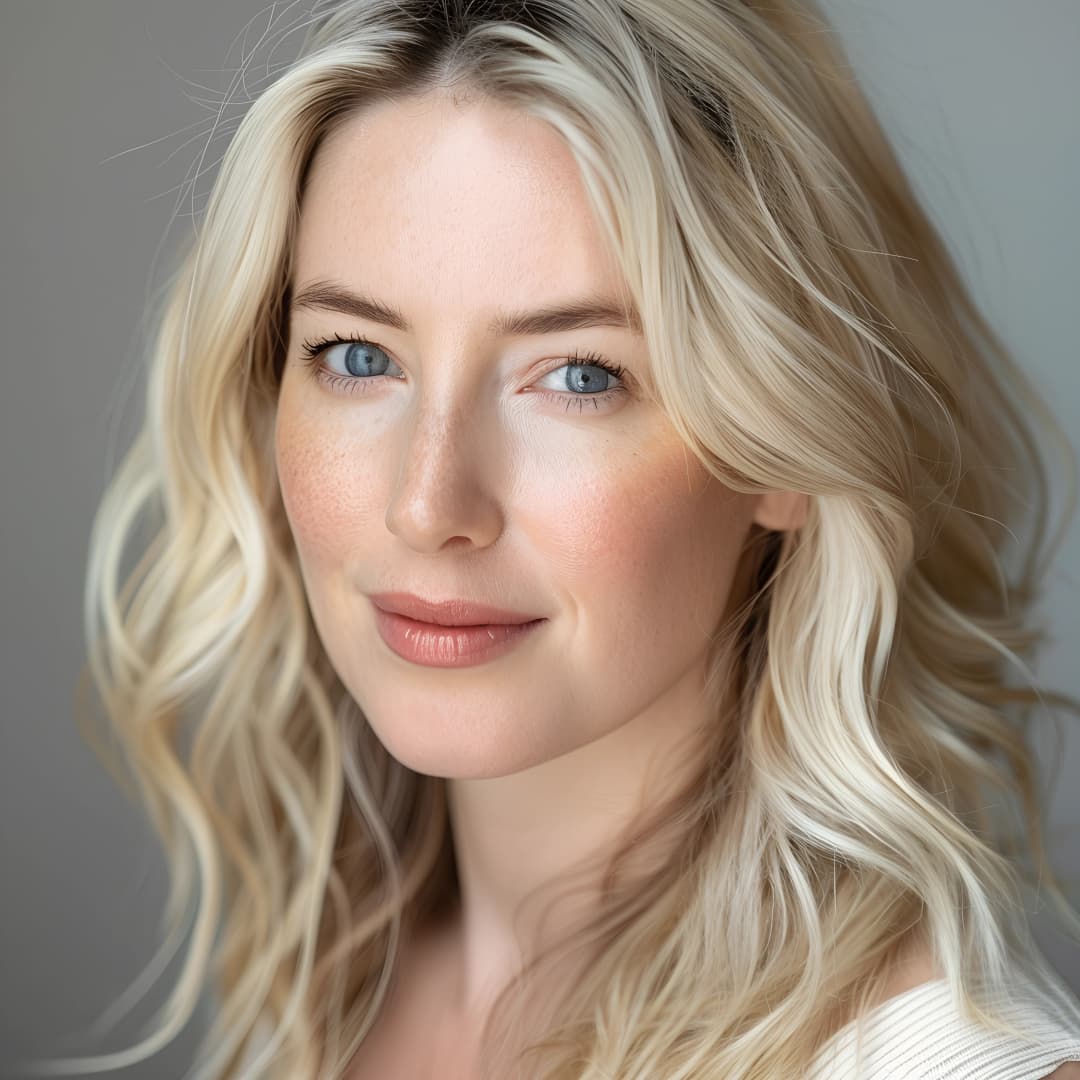
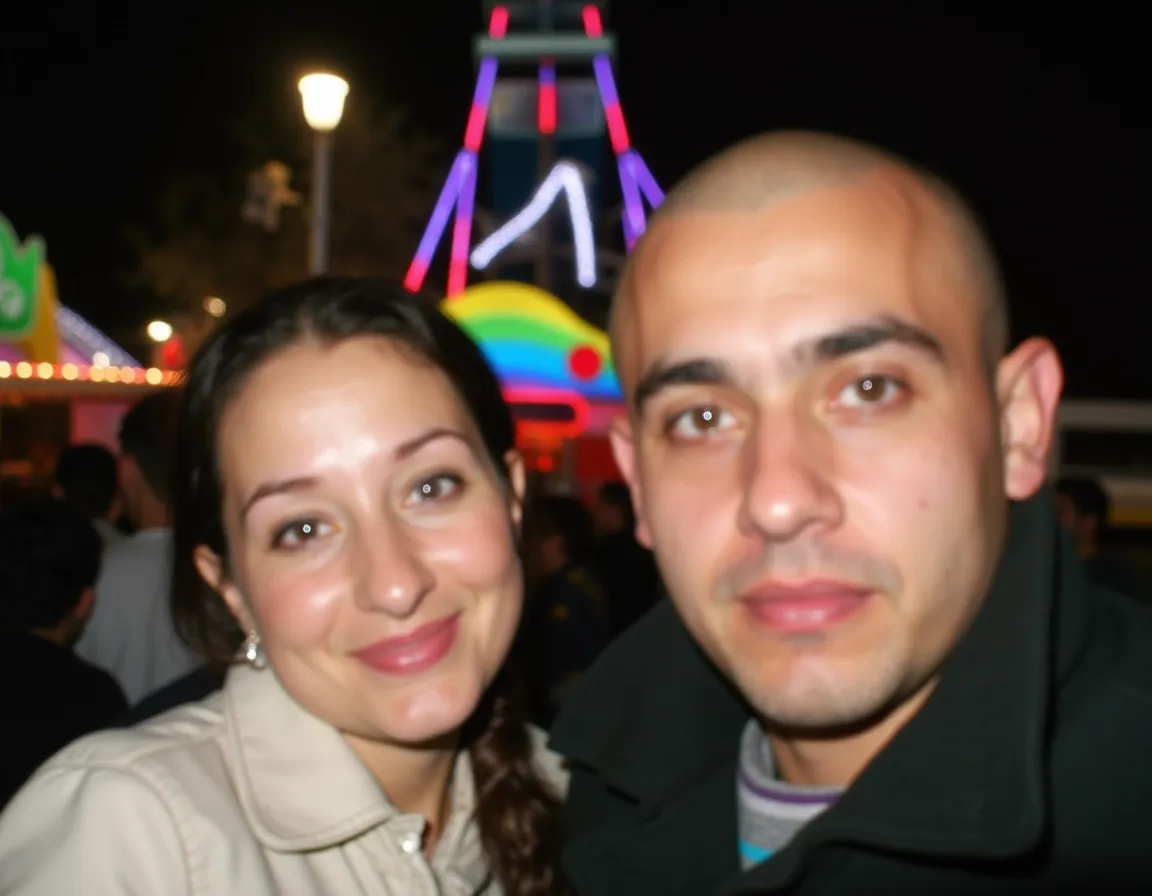
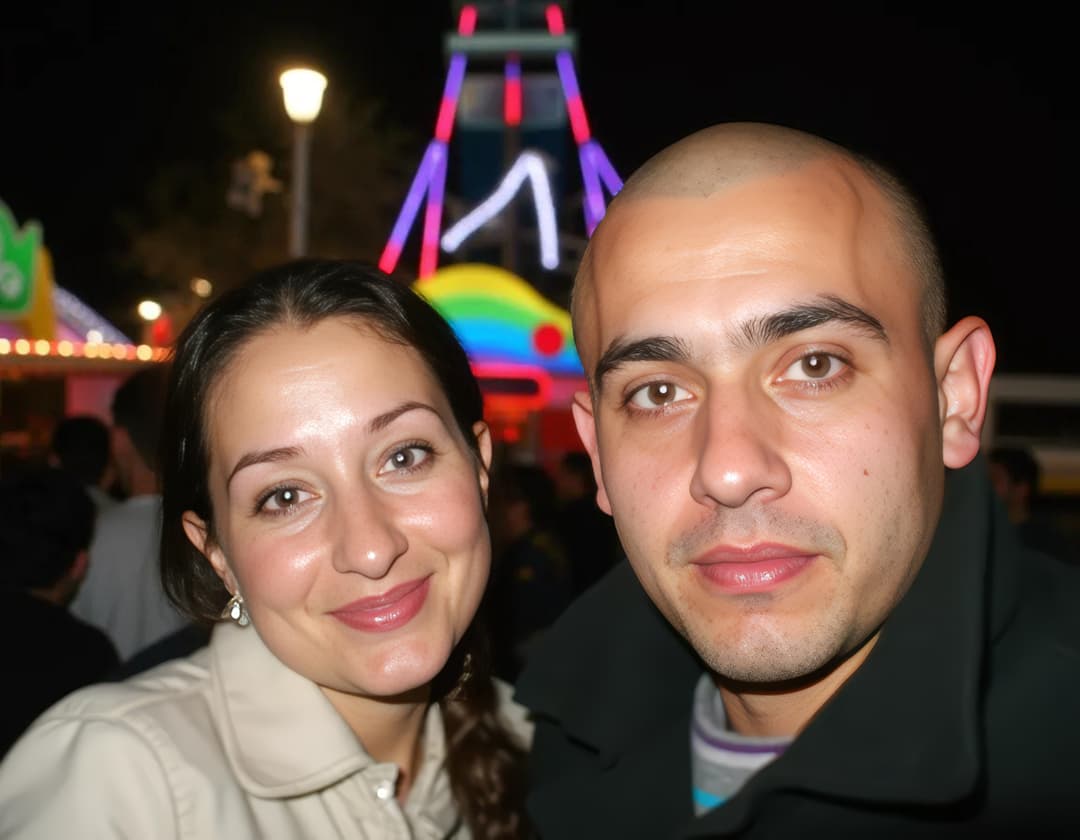
Portrait photo before AI upscaling
Before
Portrait after AI upscaling with Portrait mode
After

Portrait Upscaling

Mode
Portrait
Model
Crystal Upscaler
Scale
Original
736 × 490 JPG
Output
4384 × 2928 PNG
Processing time
Not recorded
Credits used
20

Observed

  • Portrait mode ran the face-focused Crystal workflow on the photo.
  • The 736 × 490 JPG was enlarged to a 4384 × 2928 PNG (≈6× effective scale, delivered dimensions as measured).

Limitations

  • Face-aware enhancement redraws fine skin and hair texture; it does not recover detail that was never in the original.
Product image before AI upscaling
Before
Product image after AI upscaling with Crisp mode
After

Sharp Product Upscaling

Mode
Crisp
Model
Recraft Crisp Upscale
Scale
Fixed
Original
1024 × 1024 PNG
Output
4096 × 4096 WebP
Processing time
Not recorded
Credits used
1

Observed

  • Crisp mode has no user-selectable scale; it delivered a 4096 × 4096 WebP from the 1024 × 1024 PNG.
  • The result keeps edges and outlines sharp and faithful to the source.

Limitations

  • Crisp mode sharpens what is already there; heavy compression artifacts in the source remain visible.
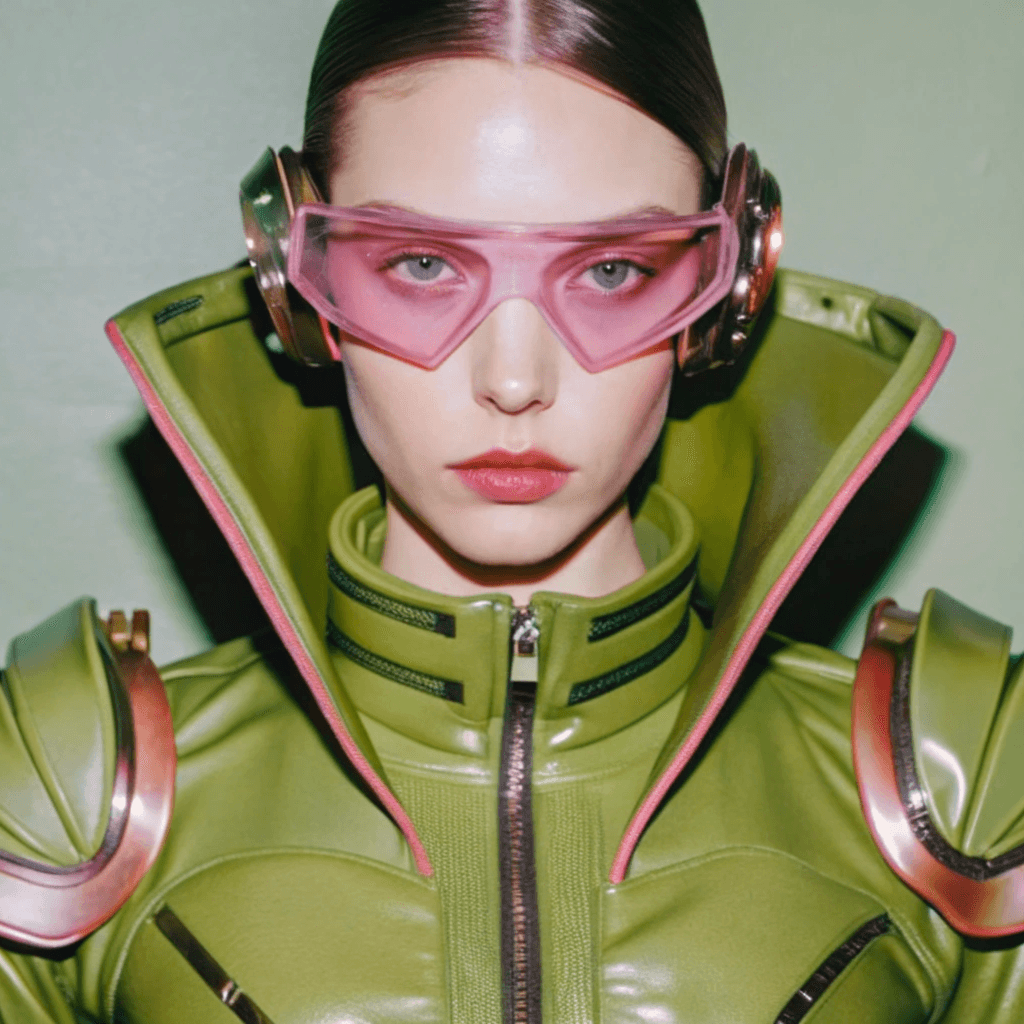
AI artwork before AI upscaling
Before
AI artwork after AI upscaling with Creative mode
After

Creative Artwork Upscaling

Mode
Creative
Model
Recraft Creative Upscale
Scale
Fixed
Original
1024 × 1024 PNG
Output
4096 × 4096 WebP
Processing time
Not recorded
Credits used
30

Observed

  • Creative mode delivered a 4096 × 4096 WebP from the 1024 × 1024 PNG artwork.
  • Creative mode may add or reinterpret image details, which suits stylized artwork.

Limitations

  • Because Creative mode may add or reinterpret details, it is not suitable for archival photos, documents, or images with exact text and logos.
Low-resolution photo before AI upscaling
Before
Photo after 4x AI upscaling with Smart mode
After

Versatile Photo Upscaling

Mode
Smart
Model
Topaz Image Upscale
Scale
Original
1152 × 896 WebP
Output
4608 × 3584 JPG
Processing time
Not recorded
Credits used
5

Observed

  • Smart mode enlarged the 1152 × 896 WebP by 4× to 4608 × 3584.
  • The result was delivered as a JPG at 5 credits for this output size.

Limitations

  • Very dark or noisy sources can still show noise after 4×; Smart mode refines detail but does not remove heavy sensor noise.
High-resolution photo before AI upscaling
Before
Photo after 2x AI upscaling with High Scale mode
After

High-Resolution Upscaling

Mode
High Scale
Model
Clarity Pro Upscaler
Scale
Original
1280 × 768 JPG
Output
2560 × 1536 PNG
Processing time
Not recorded
Credits used
12

Observed

  • High Scale mode doubled the 1280 × 768 JPG to 2560 × 1536 PNG.
  • Credits are charged per output megapixel for this mode; the 3.9 MP result cost 12 credits.

Limitations

  • Higher scales are capped by the 64 MP output limit, so the available scale depends on the input dimensions.
Older photo before AI upscaling
Before
Older photo after 2x AI upscaling with Classic mode
After

Classic Real-ESRGAN Upscaling

Mode
Classic
Model
Real-ESRGAN
Scale
Original
500 × 438 JPG
Output
1000 × 876 PNG
Processing time
Not recorded
Credits used
1

Observed

  • Classic mode doubled the 500 × 438 JPG to 1000 × 876 PNG using the traditional Real-ESRGAN workflow.
  • The result was delivered as a PNG at 1 credit for this output size.

Limitations

  • Real-ESRGAN can oversharpen clean modern graphics, and small text or logos may be interpreted rather than reproduced exactly.

Why Use Our Bulk Image Upscaler

Built for processing several images in a single task, with per-plan limits that scale with your workload.

  • Process multiple images in one batch
  • Use plan-based batch limits for different workloads
  • Choose a mode based on your image type
  • Use a portrait-focused workflow for facial details
  • Support JPG, PNG, and WebP
  • View your current plan and batch limit
  • Manage multiple images in one processing task

Compare Plans and Batch Limits

Your batch limit depends on your current plan. New accounts start on the Free plan with 10 credits.

PlanPriceBatch limitCredits / mo
FreeFreeUp to 5 images per batch10 free credits for new accounts
Go$5/moUp to 20 images per batch100 credits
Plus$10/moUp to 50 images per batch300 credits
Pro$20/moUp to 100 images per batch700 credits

Image Privacy and File Retention

The application does not publish uploads or results. Files sent to the processing provider and its temporary output files are deleted after 1 hour.

Private processing

Uploaded images are sent directly to the configured processing provider. They are not added to a public gallery, sitemap, or searchable file route.

Short-lived result links

Results are returned directly to your browser with private, no-store caching. Download them before the provider's one-hour file-retention window ends.

Frequently Asked Questions

Yes. You need to create an account before processing images. New accounts receive 10 free credits.

Questions about plans, billing, or your account? Read the Pricing page or contact support.